From picking a display to testing it in the room, a practical workflow for creators, designers and anyone exploring holographic visuals.
You render a glowing 3D object, export the file and press play. On the display it looks flat, dim or cropped. The animation is rarely the problem. A 3D hologram video is made for one specific way of viewing, and it only works when the file matches the display it plays on. This guide covers four steps that keep the two aligned.
What a 3D Hologram Video Is, and Why the Viewing Method Matters
In optics, a hologram is recorded as an interference pattern, produced with a laser, and it reproduces a three-dimensional image of the original object, as Britannica's summary of holography explains. The image changes as the viewer moves, which a flat video cannot do.
Most hologram video is something else. It is ordinary video designed to look three-dimensional through a reflector, a transparent screen or a projection setup. The University of Arizona's Wyant College of Optical Sciences notes that Pepper's pyramid projectors create a virtual image by reflection and are not technically holograms, even though popular culture calls them that.
That is fine for production, as long as you know which one you are building. The method you pick sets every decision that follows.
Step 1: Choose the Display Method First
Decide where the video plays before you open any 3D software.
The main options behave differently:
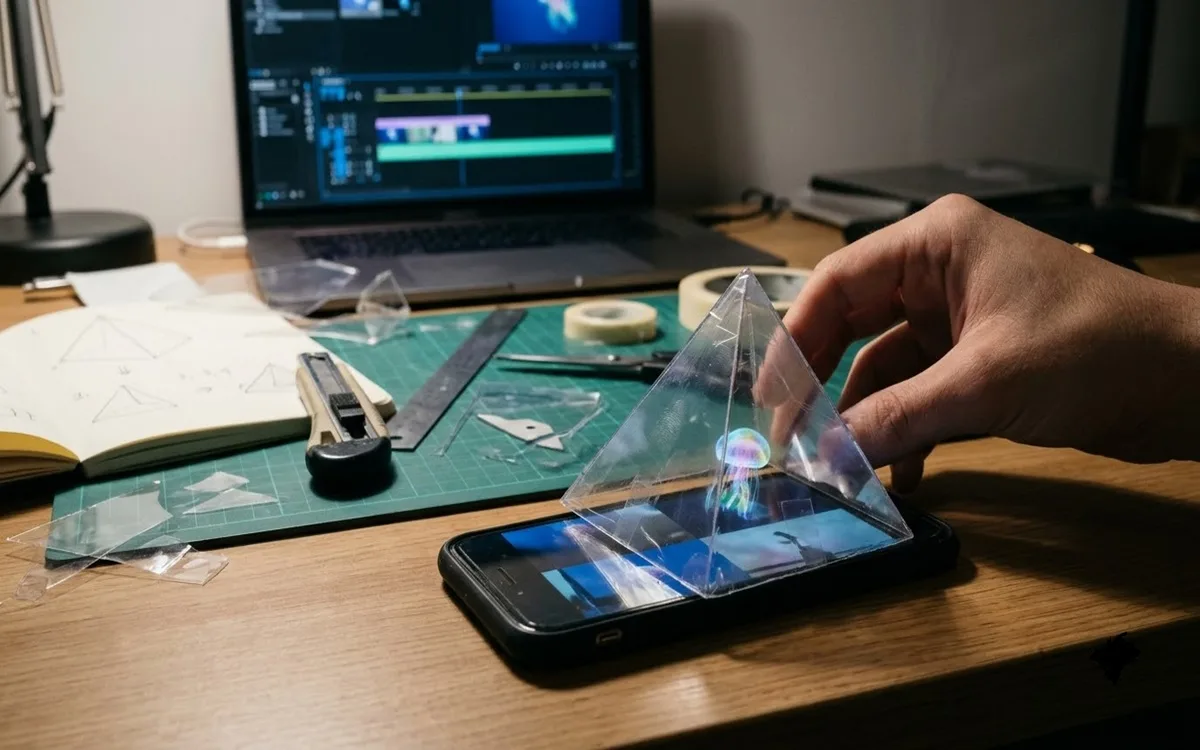
•Reflective pyramid. A clear four-sided pyramid sits on a phone or tablet, and each face reflects one of four views shown on the screen. It suits small objects and close viewing.
•Pepper's Ghost-style display. A sheet of glass or foil, typically angled around 45 degrees, reflects a hidden screen or projector toward the audience. It scales from museum cases to stages.
•Compatible holographic display systems. Purpose-built products, such as transparent-screen boxes or volumetric displays, each define their own content format. Request the specification first.
•Projection-based setups. Projecting onto transparent or semi-transparent surfaces can make imagery appear to float. Surface type, projector brightness and room light set the limits.
These methods do not work identically. A four-view pyramid file looks wrong on a single-view glass reflector, and neither suits a display that expects its own format. Mistake to avoid: treating one master file as universal.
Step 2: Create or Prepare the 3D Content
Start with a subject that reads clearly in light alone. Model it in a tool such as Blender, or license ready-made assets and check their usage terms. Then plan the scene around the display:
•Keep one strong subject. A clear silhouette beats a busy scene, because the display adds no environment around it.
•Animate slowly. Gentle rotation or a short loop shows depth better than fast cuts.
•Set the viewing angle. A pyramid shows the object from four sides, a glass reflector faces one audience direction, and a commercial display follows its manufacturer's guidance. Place the camera to match.
•Choose bright materials. Dark surfaces vanish against black.
This matters because the 3D work is what viewers remember, and export settings cannot repair it later.
Mistake to avoid: packing in fine detail that only a close monitor view reveals.
Step 3: Render and Optimise the Video
Rendering is where the content meets the hardware, so every setting comes from the display, not from habit.
•Background and contrast. Use pure black behind a bright subject. The same Arizona guidance recommends a bright foreground on a black background.
•Position and perspective. Centre the subject and leave a margin around it. A reflection mirrors the image, so flip text and logos in the source when needed.
•Resolution and aspect ratio. Match the display's native resolution and orientation, since scaling softens fine detail.
•Frame rate and format. Use the frame rate and file type the player or display specifies. In Blender, the output properties let you select the container, codec and quality, and some combinations are incompatible, so test a short clip before a long render.
Scale raises the stakes. ViitorX modelled and animated a life-size hologram of Kaziranga's one-horned rhino and then mastered it for the holographic display it ran on.
Mistake to avoid: exporting once at maximum quality and assuming it works everywhere. The correct settings depend on the target display.
Step 4: Test and Refine the Final Output
Judge the video on the display it was made for, in the room where it plays. A monitor hides the reflections, ambient light and viewing-angle problems that the real setup exposes. Check six things:
•Playback. Motion is smooth, orientation is correct and the loop restarts cleanly.
•Visibility. The subject reads from every position where people will stand.
•Alignment. The pyramid sits on the centre of the four views, or the reflector holds its intended angle.
•Viewing distance. The image works from both the nearest and farthest positions.
•Reflections. Stray light on glass or screen is shaded.
•Audience experience. A first-time viewer understands what they are seeing within seconds.
For troubleshooting, a faint image usually improves with higher source brightness and a dimmer room, and a mirrored image needs flipping in the source.
If one side of a pyramid looks dim, rotate the device, because the Arizona team links that symptom to polarised screens. Change one variable at a time, re-render only what changed and test again.
Quick Checklist Before You Share
•Display method confirmed, with its content specification in hand.
•Bright, centred subject on a black background.
•Export matches the hardware's resolution, frame rate and format.
•Tested on the real display, in the real room.
The Takeaway
A convincing 3D hologram video comes from sequence, not effects. Choose the display, build the content for it, render to its specification and test it in place. Skip that order and no render setting rescues the result. Follow it and the same animation looks deliberate on the day it counts.