Introduction
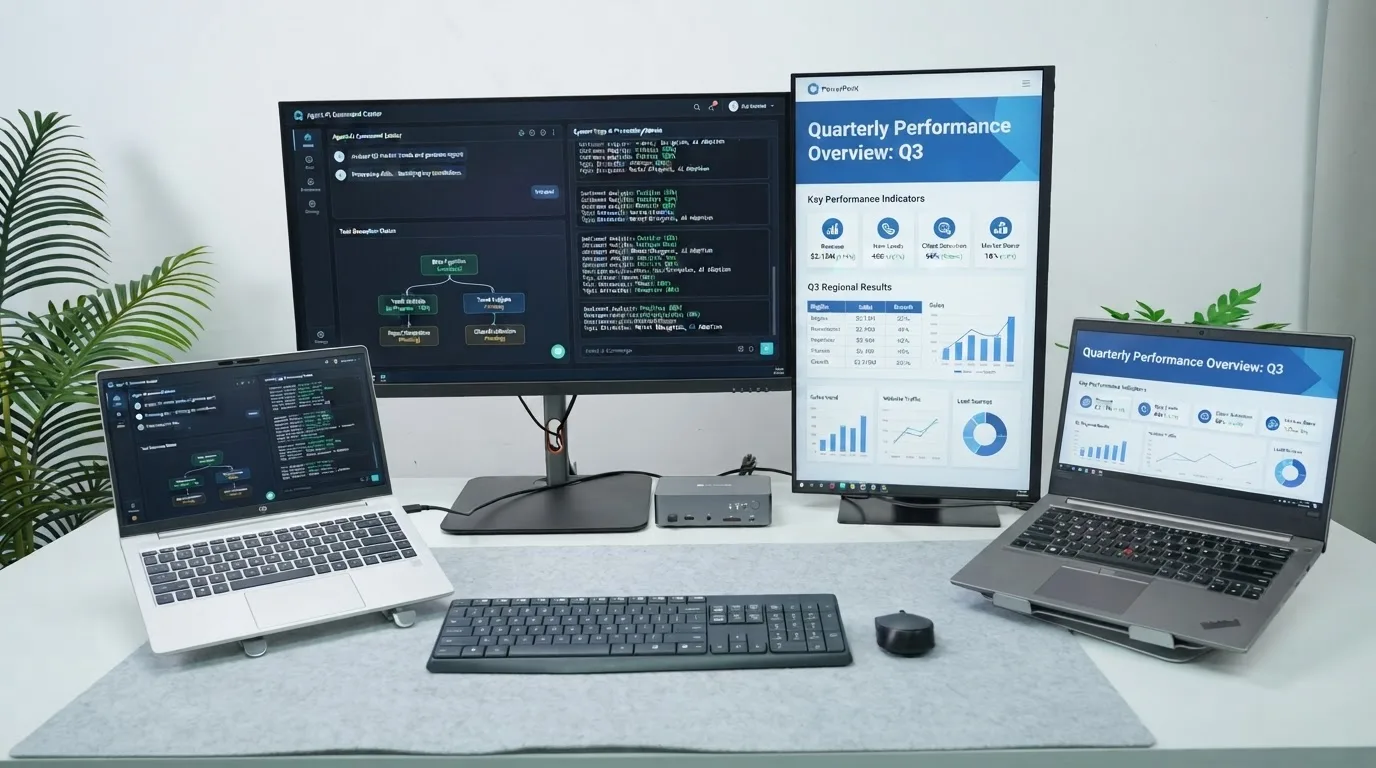
In the past few months, more people have started building personal AI workstation setups as local AI tools become more practical and accessible. Instead of relying on a single computer for everything, many users now separate their workflow into two systems, one dedicated to AI tasks and another for everyday productivity work like meetings, writing, and communication.
I ended up doing the same thing. One system is mainly used for AI-related workloads such as testing tools, running local models, and automation tasks, while the other handles daily work. At first, this setup felt powerful, but I quickly realized that managing two computers with two monitors and shared peripherals was more complicated than expected.
Switching inputs on monitors, plugging and unplugging USB devices, and moving between two different environments started to interrupt my workflow more than the AI tasks themselves. That was when I started looking for a better way to manage everything from a single desk setup.
This is where a KVM docking station becomes useful. Instead of treating each computer as a separate workspace, it allows both systems to share the same monitors and peripherals and switch between them instantly without manual cable changes.
In this article, I’ll share why more users are adopting KVM docking stations for AI workstation setups and how a solution like the AV Access iDock C20 fits into this workflow.
Why AI Workstations Are Moving Beyond a Single Computer
An AI workstation today does not always mean a high-end server or a single powerful desktop. For many users, it simply means a setup that can handle AI workloads efficiently without interrupting daily work.
One important reason for moving beyond a single computer is workload separation. AI tasks such as model testing, data processing, or content generation often run for long periods and do not require constant interaction. At the same time, everyday work like email, meetings, and document editing still needs to happen smoothly.
Running everything on one machine can create unnecessary friction. Background AI tasks may slow down the system, or active work may interrupt ongoing processes. By splitting tasks across two computers, users can create a more stable and focused workflow.
Another reason is flexibility. Many users already own multiple devices, such as a laptop from work and a personal machine for development or AI experimentation. Instead of choosing one over the other, combining them into a unified workspace makes more sense.
However, once two computers are involved, a new challenge appears. Managing displays and peripherals becomes the real bottleneck.
Why a KVM Docking Station Is Becoming Essential for AI Workflows
When using two computers on the same desk, the initial setup usually feels fine. Each device has its own monitor input, keyboard, and mouse. But once you start switching between them multiple times a day, the workflow becomes fragmented.
You often find yourself doing the same repetitive actions. Changing HDMI or DisplayPort inputs, unplugging USB receivers, reconnecting webcams, or even moving Ethernet cables, depending on which system you are using. These steps seem small, but they interrupt focus more than expected.
A KVM docking station solves this problem by centralizing everything into one hub. Instead of managing separate connections for each computer, both systems connect to a single device that controls monitors, USB peripherals, and network access.
The key advantage is switching speed and simplicity. With one action, you can move from your AI workstation to your daily laptop environment without touching any cables. Monitors, keyboard, mouse, and other devices follow the selected system instantly.
For AI users, this matters because workflows are often split between long-running tasks and active work sessions. One machine may be processing data or running models in the background, while the other is used for writing, communication, or monitoring results. A KVM docking station allows both roles to coexist without forcing you to reconfigure your desk constantly.
This is the context where the AV Access iDock C20 becomes relevant, as it combines both KVM switching and docking functionality into a single setup designed for dual computer workflows.
Why the iDock C20 Is Built for Modern AI Workstations
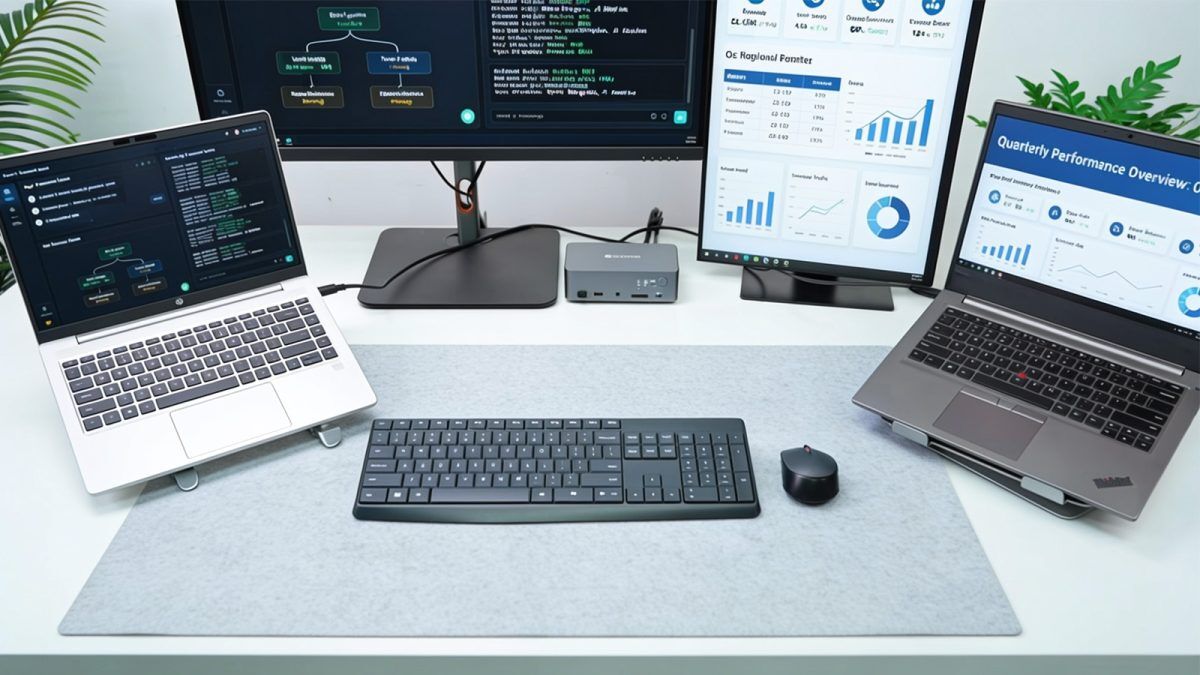
The AV Access iDock C20 is designed for users who work across two computers regularly. Instead of being just a traditional dock or a simple switch, it combines both into one system that supports shared monitors, peripherals, and network connections.
Flexible Connections for Different AI Workstation Setups
The iDock C20 supports two host computers, making it suitable for a variety of dual-system setups such as
- AI laptop + office laptop
- Mac mini + MacBook
Each system connects through USB C, which allows compatible laptops to carry video, data, network, and power through a single cable. This helps reduce cable clutter and simplifies desk organization, especially in setups where both systems are used daily.
Dual Monitor Support and Compatibility
One of the core advantages of the iDock C20 is its support for dual monitor workflows across two computers. This is particularly useful for AI workstation users who often need multiple screens for monitoring outputs, logs, or documentation while working.
At the same time, display behavior depends on the operating system and hardware configuration. Windows systems typically allow more flexible multi-display behavior, while macOS has certain limitations in external display handling depending on device type. Understanding this helps users choose the right setup for their workflow.
Share Peripherals Across Both Systems
One of the most practical advantages of a KVM docking station is the ability to share everyday peripherals between two computers without needing duplicate devices.
With the iDock C20, both connected systems can use the same keyboard, mouse, webcam, headset, and USB accessories through a single hub. This makes the desk feel significantly cleaner and removes the need to replug devices when switching between systems constantly.
In an AI workstation setup, this becomes especially useful because workflows often involve moving between active creation work and background processing tasks. Instead of rebuilding your workspace each time, everything stays connected and ready.
For example, you might be monitoring AI model output on one machine while working on documents or communication tasks on the other. The shared peripheral setup keeps both environments accessible without extra setup time.
Two Switching Modes for Different Workflows
The iDock C20 supports two working modes, and this is where it becomes more flexible than a standard docking station.
KVM ModeIn KVM Mode, both monitors and all connected peripherals switch between the two computers.
This mode is ideal when you focus on one system at a time. For example, you might spend a few hours working on your AI workstation, then switch completely to your office laptop for meetings or writing tasks.
The key advantage is simplicity. One action switches the entire workspace, including displays, keyboard, mouse, and other USB devices.
USB ModeUSB Mode separates display control from peripheral control.
In this mode, each monitor can stay assigned to a different computer, while the keyboard and mouse can still be switched between systems.
This creates a different kind of workflow. Instead of fully switching environments, you can keep both systems visible at the same time. This is particularly useful for AI users who want to monitor processes running on one machine while actively working on another.
USB Mode is often the more flexible option for users who rely on continuous background AI tasks.
Shared Gigabit Ethernet for Stable Connectivity
Another important part of a modern AI workstation is network stability. Many AI workflows involve downloading models, syncing datasets, or accessing cloud services, all of which benefit from a reliable wired connection.
The iDock C20 includes shared Gigabit Ethernet support, allowing both connected computers to access a stable wired network through a single Ethernet connection.
This reduces the need for separate network cables and ensures both systems can maintain consistent connectivity, which is especially useful when working with large AI models or cloud-based tools.
60W USB C Charging for Laptop Workflows
For compatible laptops, the iDock C20 also provides USB C power delivery up to 60W.
This means that a single USB C connection can handle video output, data transfer, peripheral control, network access, and charging at the same time.
In daily use, this simplifies the entire setup. Instead of managing multiple power adapters and cables, users can keep their laptop powered through the docking station while maintaining a clean desk environment.
For AI workstation users who frequently switch between laptops, this also reduces friction when changing devices during the workday.
AV Access iDock C20 Specifications
CategorySpecificationModel NameAV Access iDock C20Product TypeDual Computer KVM Docking StationPrimary Use CaseAI Workstation + Productivity (2 Computers + Dual Monitors)Host Inputs2× USB C (Host 1 / Host 2)USB C Input StandardUSB 3.2 Gen 2 / DisplayPort Alt Mode / Up to 60W Power DeliveryVideo Outputs2× HDMI (Dual Display Output)Max ResolutionUp to 4K@60Hz (Dual Display)KVM SwitchingYes (Keyboard / Mouse / Display switching between 2 computers)USB Switching ModeSupported (Independent USB peripheral switching with flexible display control)Power Delivery (Laptop)Up to 60W via USB C (compatible host devices)USB PortsUSB-A 3.0 × 2 / USB-A 3.0 × 4 / USB C × 1Storage ExpansionSD Card SlotNetwork Port1× Gigabit Ethernet (Shared between two computers)Display Mode (macOS)macOS supports mirror display mode only in a dual-monitor KVM setupOperating Systems SupportedWindows, macOSRecommended Setupdual laptops / Mac mini + MacBookKey FeaturesDual-monitor sharing, KVM + USB mode switching, USB C docking, LAN sharing, streamlined dual-PC workflowAI Workstation Setup Ideas with the iDock C20
Once the system is set up, the real value of a KVM docking station becomes clear in how it supports different workflows.
Setup 1: Two Laptops for AI Work and Daily Productivity
A common setup is using two laptops, one dedicated to AI-related tasks and the other for daily work.
In this case, the AI laptop runs tasks such as model testing, automation, or data processing, while the second laptop is used for communication, writing, and meetings.
In KVM Mode, users can switch both monitors and peripherals instantly between the two laptops, making it easy to move from AI work to office tasks without touching cables.
In USB Mode, each laptop can stay assigned to a different monitor, which allows users to keep an eye on AI outputs while working on the other system. The keyboard and mouse can still be switched as needed, making this mode more suitable for multitasking workflows.
Setup 2: Mac Mini and MacBook for AI and Everyday Work
Another increasingly popular setup is combining a Mac Mini with a MacBook.
In this workflow, the Mac Mini is typically used as a dedicated AI workstation. It can remain powered on for long-running tasks such as local AI model execution, automation, or development processes. Meanwhile, the MacBook is used for daily productivity tasks like meetings, browsing, and writing.
In KVM Mode, both systems share the same dual monitor setup and peripherals. However, due to macOS display behavior, both systems typically mirror the external displays rather than extending them independently in this configuration.
In USB Mode, the experience becomes more flexible. Each monitor can be assigned to a different system, allowing users to monitor AI processes on the Mac Mini while actively working on the MacBook. Peripherals can still be switched instantly, making this a more dynamic workflow for many Mac users.
Is the iDock C20 the Right KVM Docking Station for Your AI Workstation?
The iDock C20 is not just a docking station or a simple switch. It is designed for users who regularly work across two systems and need a stable, flexible way to manage both.
If your workflow involves separating AI tasks from daily productivity work, or if you frequently switch between a Mac Mini, MacBook, or dual laptop setup, a KVM docking station like the iDock C20 can significantly reduce friction in your daily routine.
Instead of managing cables and inputs, you gain a unified workspace that adapts to both systems instantly.
FAQ
1. Is a KVM docking station useful for an AI workstation setup?Yes. A KVM docking station helps manage two computers in one workspace by sharing monitors, peripherals, and network connections. This is especially useful for AI workflows that separate long-running tasks from daily productivity work.
2. What is the difference between KVM Mode and USB Mode on the iDock C20?KVM Mode switches both monitors and peripherals between two computers, while USB Mode allows each monitor to stay assigned to a different system and lets you switch only peripherals.
3. Can I use a Mac Mini and a MacBook together with the iDock C20?Yes. The iDock C20 supports Mac Mini and MacBook setups. However, macOS display behavior may result in mirrored external displays in KVM Mode, while USB Mode provides more flexible monitor usage.
4. How does the iDock C20 help improve AI workstation productivity?It reduces the need to manually switch cables, inputs, and peripherals, allowing users to focus more on AI tasks and daily work instead of managing hardware connections.
Conclusion
As AI workflows become more integrated into daily work, managing multiple computers efficiently is becoming increasingly important. A KVM docking station like the iDock C20 helps bridge the gap between AI workloads and productivity tasks by creating a unified and flexible workspace.
For users building modern AI workstation setups, this kind of simplicity often makes a bigger difference than additional hardware performance alone.