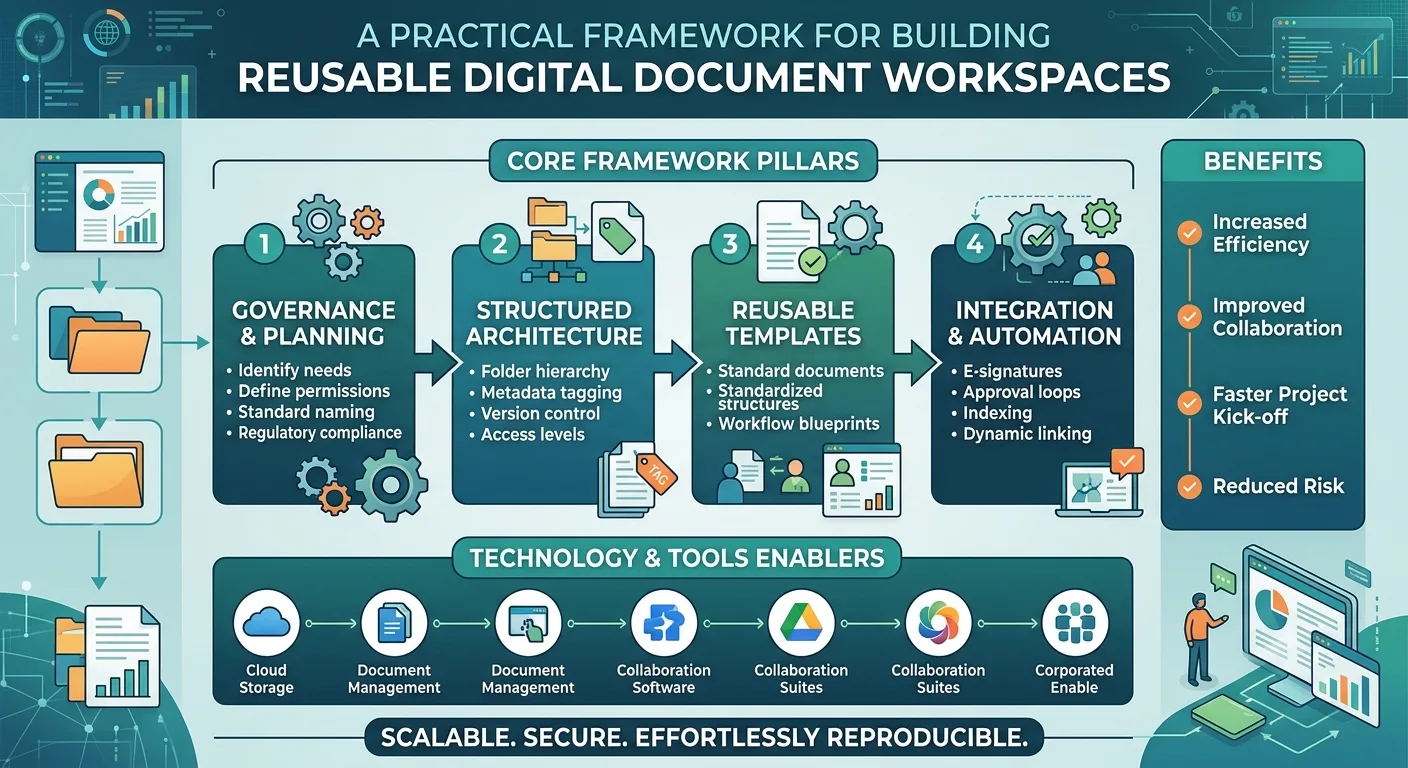
When businesses handle large collections of sensitive documents, having a clear digital structure can make everyday work much easier. Legal teams, financial departments, consultants, project managers, and business owners may all need to manage documents across multiple projects or transactions. A virtual data room folder template provides a repeatable starting point for organizing these documents without requiring teams to design a new structure every time.
A template is especially useful when similar information needs to be collected repeatedly. Instead of deciding where each document belongs from scratch, a business can establish a standard framework and adapt it when necessary. This creates consistency while still leaving room for project-specific requirements.
What Is a Virtual Data Room Folder Template?
A virtual data room folder template is a predefined hierarchy designed to organize documents within a secure digital workspace.
A basic template might include:
01_Corporate
02_Financial
03_Legal
04_Tax
05_Human Resources
06_Commercial
07_Operations
08_Intellectual Property
The categories can then contain additional subfolders.
For example:
02_Financial
- Financial Statements
- Management Accounts
- Budgets
- Forecasts
- Banking
- Debt
The exact structure should depend on the purpose of the data room and the information being collected.
Why Templates Are Useful
Creating a digital workspace from scratch for every project can lead to inconsistent results.
One project may have a folder called "Financials," while another uses "Finance Documents." A third might place financial information under "Accounts."
These differences may seem small, but they can make large document collections harder to navigate.
A template establishes a common starting point.
Employees can reuse the same basic structure while adding or removing folders based on the specific project.
This is particularly useful for organizations that manage recurring transactions, client projects, audits, or large document collections.
The Importance of a Logical Hierarchy
A good template should reflect how users think about information.
For example, a business transaction may naturally divide documents into:
- Corporate
- Financial
- Legal
- Tax
- HR
- Commercial
- Operations
- Technology
This structure provides a logical path through the information.
Within each category, subfolders can provide additional detail.
For example:
Legal
- Material Contracts
- Litigation
- Regulatory
- Intellectual Property
- Insurance
Users can then move from broad categories to specific document types.
Avoid Making Templates Too Complex
A common mistake is creating a folder for every possible document.
This can make a workspace difficult to navigate.
Imagine a template with dozens of main folders and hundreds of subfolders. Even though the information may be technically well organized, users could struggle to determine where a particular document belongs.
A better approach is to start with major categories and add detail only where necessary.
For example:
Financial
- Annual Statements
- Monthly Reports
- Tax
- Banking
may be enough for one organization.
There is no need to create separate folders for every individual document type unless the volume justifies it.
Using Google Drive for Structured Document Management
Google Drive is frequently used by businesses to store and collaborate on documents. As the number of files increases, however, users may find it difficult to maintain a consistent structure.
A Google Drive organization tool can support workflows where many folders need to be created or maintained according to a predefined system.
The value comes from combining a clear organizational plan with tools that reduce repetitive work.
For example, a company could create a standard project structure:
Project Name
- Administration
- Planning
- Research
- Working Documents
- Reports
- Deliverables
- Archive
Every new project can use the same framework.
When Google Drive Organization Becomes Difficult
A small Drive can be easy to manage.
A large shared Drive is different.
Over time, businesses may accumulate:
- Duplicate folders
- Old projects
- Unclear file names
- Unused directories
- Personal folders
- Temporary documents
- Multiple versions of the same file
Without clear rules, the storage environment can become difficult to navigate.
The problem is not necessarily the number of files. It is the lack of a consistent system.
Build the Template Around Real Workflows
A template should reflect what employees actually do.
For example, a marketing team may need:
Campaign
- Brief
- Research
- Copy
- Design
- Approvals
- Published
- Reporting
A construction company may need:
Project
- Contracts
- Drawings
- Permits
- Suppliers
- Site Documents
- Safety
- Invoices
- Completion
The two structures are completely different because their workflows are different.
There is no universal folder template that works for every business.
Use Naming Conventions
A template becomes more effective when folder names follow consistent rules.
Businesses can use numbering:
01_Admin
02_Planning
03_Working Files
04_Final Deliverables
They can also use dates or project codes where necessary.
For example:
2026_Project_ABC
The important thing is to select a convention and apply it consistently.
Separate Active and Archived Work
One useful principle is separating current work from completed work.
For example:
Client
- Active Projects
- Completed Projects
- Archive
Within Active Projects, teams can maintain current work without mixing it with older materials.
This can reduce clutter and help employees focus on relevant information.
Templates for Repeated Business Processes
Templates are particularly valuable for recurring workflows.
Client Onboarding
A company could create:
- Contracts
- Client Information
- Project Planning
- Deliverables
- Reports
- Billing
Employee Onboarding
HR could use:
- Personal Documents
- Employment
- Payroll
- Training
- Benefits
- Performance
Marketing Campaigns
Marketing teams could use:
- Strategy
- Content
- Design
- Advertising
- Analytics
- Reports
Consulting Projects
Consultants could create:
- Research
- Client Data
- Analysis
- Presentations
- Recommendations
- Final Deliverables
The structure can then be reproduced for every new engagement.
Combining Templates With Automation
Templates become even more useful when the folder creation process itself is automated.
Instead of manually creating every directory, the organization can define the hierarchy once and reproduce it when needed.
For example:
Client Template
- 01_Admin
- 02_Documents
- 03_Project
- 04_Reports
- 05_Finance
- 06_Final
When a new client joins, the structure can be generated according to the template.
This reduces setup time and helps ensure that no important folder is accidentally forgotten.
Review Templates Regularly
A template should not remain unchanged forever.
Business processes evolve.
A marketing team may introduce a new content workflow. A finance department may change its reporting process. A legal team may require new categories of documentation.
Review templates periodically and ask:
- Are all folders still being used?
- Are employees creating additional folders?
- Are certain folders consistently empty?
- Are users struggling to find documents?
- Has the business introduced new workflows?
Employee feedback can be particularly valuable.
If people repeatedly create their own folders outside the standard structure, the template may need to be updated.
Keep Permissions in Mind
Folder organization and access control often work together.
Not every document should necessarily be available to every employee.
For example, a project may contain:
General Project Files
accessible to the project team.
Financial
limited to authorized personnel.
Legal
limited to management and legal advisors.
HR
restricted to appropriate users.
A clear hierarchy can make it easier to identify which areas require different access rules.
Use Descriptive Folder Names
Avoid vague names such as:
- Misc
- Other
- Stuff
- New
- Important
- Final
These names do not tell users what information they contain.
Instead, use descriptive labels such as:
- Client Contracts
- Financial Reports
- Marketing Assets
- Employee Records
- Project Deliverables
The more intuitive the folder name, the less explanation employees need.
Make the Structure Easy for New Employees
A good folder structure should be understandable even to someone who has never used it before.
New employees should be able to look at the main folders and understand what each one contains.
This is one reason simple hierarchies often work better than highly complicated systems.
A short folder guide can also help.
For example:
01_Admin: administrative records
02_Project: active project files
03_Reports: completed reports
04_Deliverables: approved client materials
This provides immediate context.
A Simple Example
Consider a consulting firm managing several client engagements.
Its reusable template could be:
Client Name
- 01_Admin
- 02_Research
- 03_Client Data
- 04_Analysis
- 05_Presentations
- 06_Reports
- 07_Final Deliverables
- 08_Archive
When a new engagement begins, the structure can be reproduced rather than manually designed.
This gives employees a predictable workspace and makes it easier to move between different client projects.
Conclusion
A reusable folder framework can make large digital workspaces easier to build and maintain. A well-designed virtual data room folder template gives teams a consistent starting point for organizing sensitive documents, while a Google Drive organization tool can help reduce repetitive work when similar folder structures need to be created repeatedly.
The best systems are simple enough for employees to understand and flexible enough to adapt to different projects. By combining logical categories, consistent naming conventions, sensible folder depth, and automation where appropriate, businesses can create digital workspaces that remain manageable as their document collections grow.
FAQs
1. What is a virtual data room folder template?
It is a predefined folder hierarchy used to organize documents within a virtual data room. It provides a reusable structure that can be adapted for different transactions, projects, or document collections.
2. Can Google Drive be organized using templates?
Yes. Businesses can establish standardized folder structures for projects, clients, departments, or other recurring workflows. Automation can also help reproduce these structures when needed.
3. How many folders should a template contain?
There is no fixed number. The template should contain enough folders to make information easy to locate without creating unnecessary complexity. The ideal structure depends on the organization's workflow and document volume.
4. Should completed projects remain in the main workspace?
Usually, completed projects should be separated from active work where practical. An archive structure can keep older information available without allowing it to clutter the areas employees use every day.
For more Information visit site : www.ezfolders.com