

A business email is one of the simplest ways to make your brand look more professional. Instead of using a free email address like [email protected], you can use a domain-based email such as [email protected], [email protected], or [email protected].
This small change makes a big difference. A business email with domain builds trust, improves brand identity, and gives customers a more professional way to contact you. Whether you are running a small business, agency, online store, consulting service, or personal brand, a custom email address helps you look more serious and organized.
If your hosting account comes with cPanel, creating a domain email address is quite easy. cPanel has an Email Accounts section where users can create, manage, and delete email accounts for their domain.
In this guide, we will explain how to create business email in cPanel, how to access it, how to connect it with mobile or desktop apps, and what best practices you should follow after setting it up.
What Is a Business Email with Domain?
A business email with domain is an email address that uses your own website domain name after the @ symbol.
For example:
This is different from a free email address such as Gmail, Yahoo, or Outlook. A domain-based email makes your communication look more official because it directly connects your email identity with your website or business name.
For example, if your website is example.com, then an email like [email protected] looks more trustworthy than [email protected].
This is especially important when you send quotations, invoices, customer support replies, project updates, order confirmations, or partnership emails.
Why Your Business Should Use a Domain Email Address
Many small businesses start with free email accounts because they are easy to create. That is fine in the beginning, but as the business grows, a professional email address becomes important.
A domain email address gives your business a clean and trusted appearance. Customers are more likely to respond to an email that comes from a proper business domain. It also helps your team stay organized because you can create separate emails for different departments.
For example:
- [email protected] can be used for sales enquiries.
- [email protected] can be used for customer support.
- [email protected] can be used for invoices and payments.
- [email protected] can be used for internal operations.
This makes communication easier to manage and also gives customers the right contact point.
Another benefit is brand consistency. Every time you send an email from your domain, your brand name is visible. It works like a small branding touchpoint in every conversation.
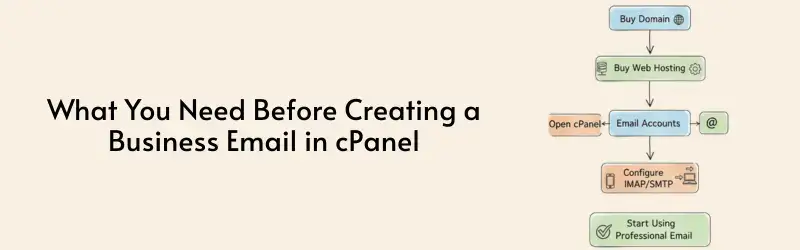
What You Need Before Creating a Business Email in cPanel
Before you create a cPanel email account, keep a few things ready.
First, you need an active domain name. This is the domain that will appear in your email address. For example, if your domain is mybusiness.com, your email can be [email protected].
Second, your domain should be connected to your hosting account. If your website is already hosted on cPanel, this is usually already done.
Third, your hosting plan should include email hosting. Most cPanel hosting plans allow you to create email accounts, but the number of accounts and storage space may depend on the plan.
Fourth, you need access to your cPanel login. Usually, you can access cPanel from your hosting provider’s client area or directly through a URL like https://yourdomain.com:2083. cPanel’s official documentation also mentions port 2083 for cPanel login access.
Once these things are ready, you can create your business email address in just a few steps.
Step-by-Step Guide to Create Business Email in cPanel
Creating a domain email address in cPanel is beginner-friendly. You do not need coding knowledge or technical server experience.
Step 1: Log in to cPanel
First, log in to your cPanel account.
You can usually access it through your hosting account dashboard. Some hosting providers also give a direct cPanel login link in the welcome email.
You may also try opening:
https://yourdomain.com:2083
Replace yourdomain.com with your actual domain name.
Enter your cPanel username and password, then click Log in.
After logging in, you will see the cPanel dashboard with different sections like Files, Databases, Domains, Email, Security, and Software.
Step 2: Go to Email Accounts
Once you are inside cPanel, scroll down to the Email section.
Click on Email Accounts.
This is the main area where you can create and manage email accounts for your domain. According to cPanel’s official guide, users can create a new email account from cPanel » Home » Email » Email Accounts by clicking Create.
Step 3: Click on Create
Inside the Email Accounts page, click the Create button.
This will open the email account creation screen.
If your hosting account has multiple domains, you will see a domain selection dropdown. Choose the domain for which you want to create the email address.
Step 4: Enter the Email Username
Now enter the username for your email address.
For example:
If you enter info, your email address will become: [email protected]
If you enter support, your email address will become: [email protected]
Choose a username based on the purpose of the email account.
- For general enquiries, you can use info.
- For customer service, use support.
- For sales, use sales.
- For billing, use billing.
- For personal business communication, use your name, such as [email protected].
Keep it simple and easy to remember. Avoid long, confusing, or random usernames.
Step 5: Set a Strong Password
Next, create a strong password for your email account.
A weak password can put your email account at risk. Since business emails often contain customer conversations, quotations, payment details, and private communication, password security is very important.
Use a password that includes:
- Uppercase letters
- Lowercase letters
- Numbers
- Special characters
- At least 12 characters
Avoid using simple passwords like password123, companyname123, admin123, or yourname@123.
cPanel also provides a password generator option in many installations. You can use it to create a strong password automatically.
Store the password safely in a password manager or secure internal document.
Step 6: Set Email Storage Space
After entering the username and password, you may see an option to set storage space for the email account.
This decides how much disk space the email account can use.
For example, you can assign:
- 500 MB for basic email usage
- 1 GB for regular business communication
- 5 GB or more for users who receive many attachments
- Unlimited, if your hosting plan supports it
Do not assign unlimited storage to every account unless required. Emails with large attachments can quickly consume server space. It is better to provide enough storage based on actual usage.
Step 7: Create the Email Account
After filling in the required details, click Create.
Your new domain email address will now be created.
You can find it listed under the Email Accounts page. From here, you can manage the account, change the password, adjust storage, access webmail, or connect it to an email client.
That’s it. Your business email account is now ready.
How to Access Your Business Email
After creating the email account, the next step is accessing it.
There are mainly two ways to use your cPanel email account:
- Access through Webmail
- Connect with an email app like Outlook, Gmail, Apple Mail, or Thunderbird
Both options are useful. Webmail is easier for beginners, while email apps are better for daily professional usage.

Accessing Business Email Through Webmail
Webmail allows you to check your email from any browser without installing an app. cPanel’s Webmail interface allows users to access email accounts through a browser or mobile device.
To access Webmail, open:
https://yourdomain.com:2096
Replace yourdomain.com with your actual domain.
Now enter your full email address and password.
For example:
- Email: [email protected]
- Password: Your email account password
After logging in, you can read emails, send emails, manage folders, and change basic email settings.
Webmail is useful when you are using a shared computer, travelling, or need quick access without setting up an email app.
Connecting cPanel Email to Outlook, Gmail, or Mobile
For regular business use, connecting your email to an app is more convenient. You can receive notifications, manage multiple accounts, and reply faster.
Inside cPanel, go to Email Accounts and click Connect Devices next to your email account. cPanel’s documentation mentions that the Connect Devices option provides mail client setup details and automatic configuration options where available.
You will usually see details like:
- IMAP server
- POP3 server
- SMTP server
- Incoming mail port
- Outgoing mail port
- SSL settings
- Username
For most users, IMAP is recommended because it syncs emails across multiple devices. If you read an email on your phone, it will also show as read on your laptop.
POP3 downloads emails to one device and may remove them from the server depending on settings. It is less suitable if you use multiple devices.
SMTP is used for sending emails.
Recommended Email Settings
While exact settings may vary based on your server, common secure email settings look like this:
- Incoming Server: mail.yourdomain.com
- IMAP Port: 993 with SSL
- POP3 Port: 995 with SSL
- Outgoing Server: mail.yourdomain.com
- SMTP Port: 465 or 587 with SSL/TLS
- Username: Full email address
- Password: Email account password
Always use secure SSL/TLS settings whenever available. This helps protect your login details and email communication while connecting to the mail server.
Best Email Names for a Business Domain
Choosing the right email name matters. A clean email address looks professional and is easy for customers to remember.
Here are some useful examples:
- [email protected] — General enquiries
- [email protected] — Sales communication
- [email protected] — Customer support
- [email protected] — Payments and invoices
- [email protected] — Hiring and employee communication
- [email protected] — Internal administration
- [email protected] — Friendly general contact
- [email protected] — Website contact forms
For individual employees, you can use:
Avoid using unprofessional names like coolbusiness@, boss@, or random numbers unless they are part of your brand identity.
To know More Information visit : https://www.scopehosts.com/blog/how-to-create-a-business-email-with-domain-in-cpanel/