
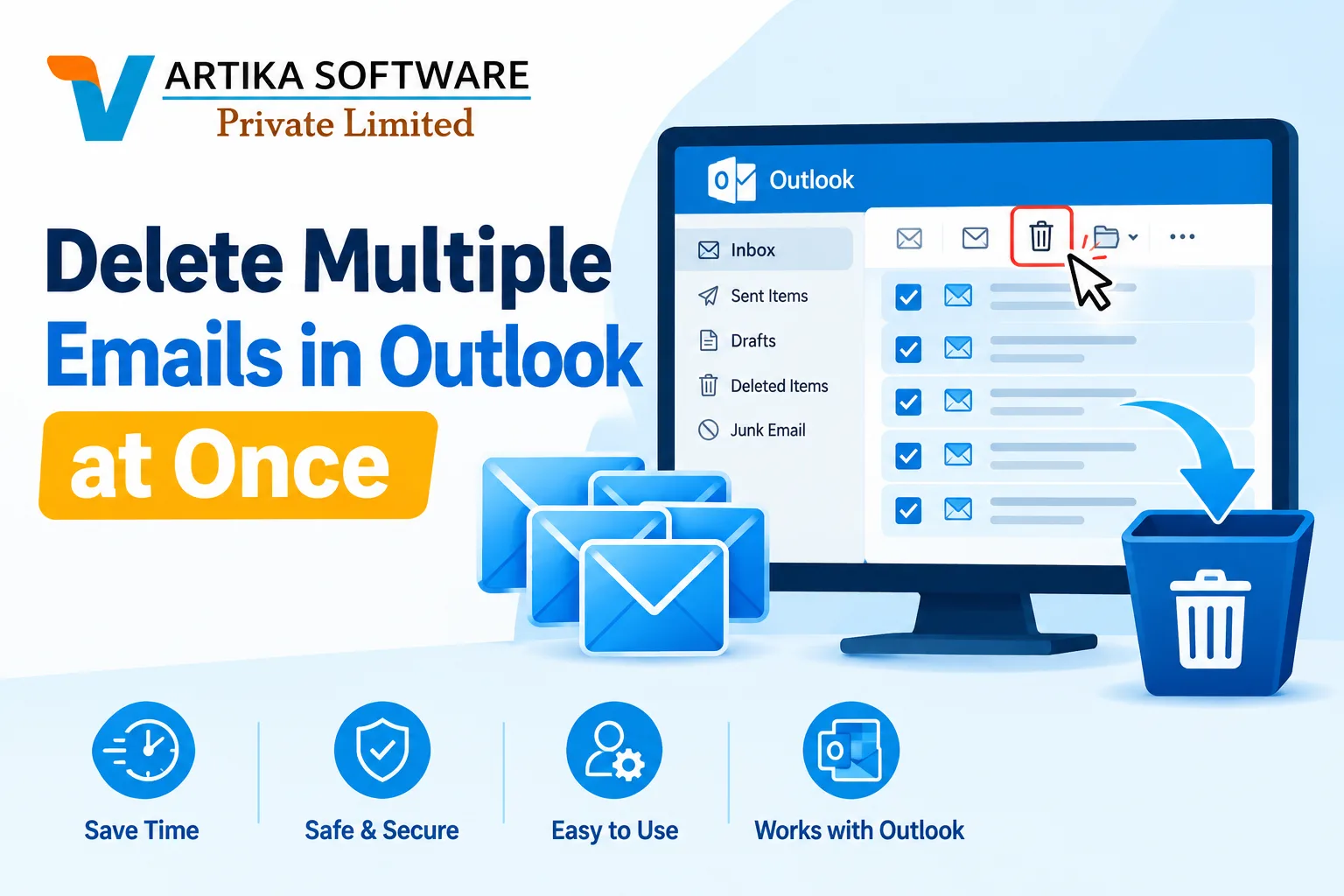
Email clutter can feel overwhelming. You log into your Outlook account, and there it is—an endless sea of unread messages, promotions, newsletters, and the occasional important email buried beneath layers of digital noise. Deleting multiple emails one by one is tedious and time-consuming. Who has the patience for that?
Fortunately, there's a way to tidy up your inbox quickly. With just a few clicks, you can reclaim control over your email space. In this guide, we’ll explore effective methods to delete multiple emails in Outlook at once and share tips on how to keep your inbox organized moving forward. Say goodbye to email overload! Let’s dive in and make managing your inbox easier than ever before.
The Problem with Deleting Multiple Emails in Outlook
Deleting multiple emails in Outlook can be a daunting task. The sheer volume of messages often leaves users feeling overwhelmed. With every irrelevant newsletter and promotional email, the clutter builds up.
Many people start clicking away in frustration, selecting one email at a time. This method is not only slow but can lead to accidental deletions of important messages. It’s easy to lose track when you’re focused on clearing out the junk.
Moreover, Outlook's interface may not provide intuitive options for bulk actions, which complicates matters further. Users often find themselves wishing for a more streamlined process that allows for quick decisions without sifting through countless emails individually.
This struggle becomes even more pronounced during busy periods when managing your inbox feels like an extra chore rather than a simple task. Finding an effective way to delete large swaths of unwanted emails should be straightforward—but it rarely is.
Step-by-Step Guide to Deleting Multiple Emails at Once
Deleting multiple emails in Outlook doesn’t have to be a daunting task.
Start by opening your inbox. Look for the emails you want to remove. You can select individual messages by clicking on them while holding down the Ctrl key.
If you're aiming to delete an entire conversation, simply click on one email, then hold Shift and select another email in that thread. This highlights all emails between those two points.
For bulk actions, consider using the “Ctrl + A” shortcut which selects everything in your current view.
Once you've made your selections, hit the Delete button or right-click and choose Delete from the context menu. Your inbox will feel lighter almost instantly!
Remember to check your Deleted Items folder afterward if you need to recover anything accidentally removed. It’s just as easy!
Tips for Organizing Your Inbox and Reducing the Need to Delete Multiple Emails
An organized inbox can save you a lot of time and frustration. Start by creating folders for different categories like work, personal, or projects. This way, emails have a designated spot.
Use filters to automatically sort incoming messages into these folders. Most email clients offer this feature, allowing you to focus on what matters first.
Set aside specific times during your day to check and respond to emails. This reduces the urge to let them pile up and become overwhelming.
Don’t hesitate to unsubscribe from newsletters or mailing lists that no longer interest you. A decluttered subscription list leads to fewer distractions.
Consider using tags or flags for important messages. By marking critical emails, you'll easily find them later without sifting through countless threads.
Try adopting the “one-touch rule.” If an email requires action — reply, forward, or delete — handle it immediately instead of letting it linger in your inbox.
Additional Features in Outlook for Managing Email Overload
Outlook offers several features designed to help you manage email overload effectively. One standout is the Focused Inbox. This feature sorts your most important emails into a separate tab, making it easier to prioritize what truly matters.
Another useful tool is the Sweep function. With this, you can quickly delete or move unwanted emails from specific senders with just a few clicks. It’s perfect for tidying up clutter without spending too much time.
Categories and flags also play an essential role in organizing your messages. You can color-code emails based on projects or urgency levels, allowing for streamlined task management.
Rules are another powerful option within Outlook. They allow you to automate actions such as moving certain types of emails directly to designated folders, keeping your inbox cleaner and more manageable each day.
Alternatives to Using Outlook for Email Management
If Outlook isn’t meeting your needs, several alternatives can streamline your email management. One popular choice is Gmail. Its intuitive interface and powerful search capabilities make finding emails a breeze.
Another option is Thunderbird, an open-source platform by Mozilla. It offers robust customization features, including numerous add-ons to enhance productivity.
For those who prefer minimalism, ProtonMail provides secure email services with end-to-end encryption. This ensures privacy while keeping your inbox organized.
Zoho Mail also deserves mention for its clean layout and comprehensive suite of tools tailored for businesses. Users appreciate its seamless integration with other Zoho applications.
Apple Mail remains a favorite among macOS users due to its native integration and straightforward functionality. Each alternative presents unique benefits that cater to different preferences and requirements in managing emails effectively.
Conclusion
Managing a cluttered inbox can feel overwhelming, especially when it comes to deleting multiple emails in Outlook. The ability to efficiently remove unwanted messages not only saves time but also helps maintain focus on what's truly important. By following the step-by-step guide outlined above, you can streamline your email management process and keep distractions at bay.
Additionally, implementing organization strategies like creating folders and utilizing filters can significantly reduce the number of emails piling up over time. Exploring additional features within Outlook will empower you to take control of your inbox more effectively.
If you're still feeling bogged down by email overload, consider exploring alternative platforms that may better suit your needs for managing communications. Whatever path you choose, finding a system that works best for you is key to enhancing productivity and reducing stress associated with email management.