Running a one-person company has changed.
A few years ago, a laptop was often enough. You could manage emails, create content, handle customer communication, and run daily operations from a single device.
Today, one person often manages the workload of an entire team. You may answer customer questions in the morning, review AI-generated reports before lunch, edit videos in the afternoon, and check automated workflows in the evening.
The challenge is not always computer performance. The bigger problem is that one computer is being asked to handle too many different jobs at the same time.
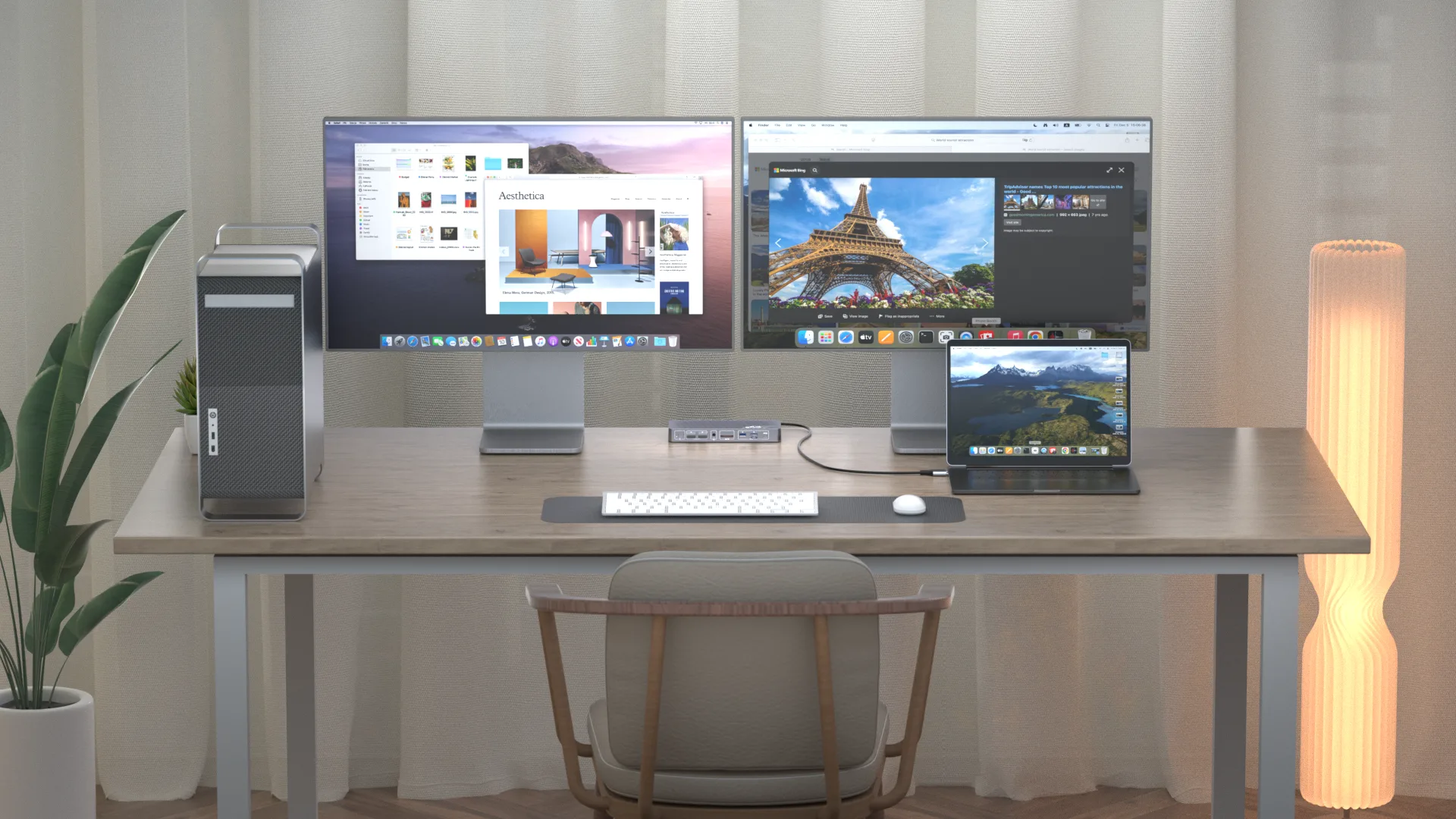
A well-designed one-person company workstation solves this problem by giving each system a clear role. Instead of forcing one computer to do everything, you can separate daily business operations from heavier or long-running tasks while keeping one comfortable desk setup.
This is where an iDock KVM Docking Station can help. By combining docking and KVM switching, iDock allows multiple computers to share monitors, keyboards, mice, and other USB devices, creating a more organized workstation without adding another desk.
What Is a One-Person Company Workstation?
A One-Person Company Workstation is a workspace designed for running an entire business from one desk.
It is not simply a powerful computer with more accessories. It is a setup built around how a solo founder actually works.
A practical workstation usually includes:
- A primary computer for daily business activities
- A secondary computer for specialized or long-running tasks
- Shared monitors and peripherals
- A simple way to switch between systems
The goal is not to create the most complicated setup possible. The goal is to reduce interruptions.
When your computer, desk, and workflow are designed together, it becomes easier to stay focused on important decisions instead of constantly managing devices.

Why More Solo Founders Are Moving Beyond One Computer
The reason is simple: one person now performs many different roles.
A solo founder may be:
- A business owner making decisions
- A content creator producing marketing materials
- A developer testing new ideas
- A project manager coordinating tasks
- An automation operator managing AI tools
These activities have different requirements.
A video export, local AI process, or development environment can consume system resources for hours. At the same time, you may need a responsive computer for a customer meeting or business operation.
Running everything on one computer creates friction:
- Applications become slower during heavy workloads
- Background tasks interrupt active work
- Different environments become mixed together
- Testing and experiments happen on the same system as important business data
This is why some users move toward a two-computer workstation.
The purpose is not to own more hardware. The purpose is to create separation.
One computer handles the work that requires your attention. Another computer handles tasks that can continue in the background.
Do You Really Need a Second Computer?
Not everyone needs a second computer.
For many people, one capable laptop or desktop is still the best choice.
A single computer is usually enough if your daily work mainly includes:
- Email and communication
- Documents and spreadsheets
- Online meetings
- Web-based tools
- Basic content creation
A second computer becomes useful when you regularly experience problems such as:
“My computer slows down when I run AI tools.”
“I cannot continue working while another task is processing.”
“I need a separate environment for testing or development.”
“I want automation running without affecting my main workspace.”
Common reasons to add a second system include:
AI and Automation Tasks
Local AI tools, automation workflows, and background processing can run independently while your main computer remains available.
Development and Testing
Developers may prefer a separate environment for testing software, running servers, or experimenting without affecting their daily system.
Content Production
Video editing, rendering, and large file processing can take significant time. A dedicated production computer allows other work to continue.
The key question is not:
“Do I need another computer?”
The better question is:
“Is my current computer becoming a bottleneck for the way I work?”
The Real Challenge: Two Computers, One Desk
Adding another computer solves one problem but creates another.
Many users quickly discover that two computers can make a desk more complicated:
- Two keyboards
- Two mice
- Multiple cables
- Different monitor inputs
- Constantly reconnecting USB devices
The hardware problem becomes a workflow problem.
Most people do not want two separate desks. They want one desk that can control multiple systems.
This is where an iDock KVM docking station becomes useful. Instead of managing two separate desks, it allows different computers to share the same workspace.
A KVM docking station combines two functions:
A docking station expands connectivity by providing ports for displays, USB devices, networking, and charging.
A KVM switch allows one set of keyboard, mouse, and monitors to control multiple computers.
Together, they create a single workspace where you can switch between systems without rebuilding your desk every time.
This is where an iDock KVM docking station becomes useful. Instead of managing two separate desks, it allows different computers to share the same workspace.
Building Your One-Person Company Workstation with iDock
There is no single perfect workstation design. The right setup depends on what computers you use and what work you need to support.
The following layouts cover the most common one-person company workstation setups.
Setup 1: One Computer Workstation
A single computer remains the simplest solution.
For many early-stage businesses, one laptop or desktop can handle everything:
- Communication
- Business management
- Research
- Content creation
- Daily operations
This setup has fewer cables, fewer updates, and fewer things to troubleshoot.
However, as the business grows, the workload often becomes more diverse. When one computer starts handling too many unrelated tasks, adding another system may create a better balance.
Setup 2: Two-Computer One-Person Company Workstation
For many solo founders, a two-computer setup provides the best balance.
The workstation usually has:
Primary ComputerThis is the computer you actively use throughout the day.
Typical tasks include:
- Customer communication
- Business decisions
- Documents
- Meetings
- Account management
The priority is stability and responsiveness.
Secondary ComputerThis computer handles tasks that do not need your constant attention.
Examples include:
- AI processing
- Automation workflows
- Rendering
- Testing environments
- Long-running applications
With an iDock KVM docking station, both computers can share:
- Monitors
- Keyboard
- Mouse
- USB devices
- Network connection on supported models
The result is a cleaner workflow: one desk, multiple systems, fewer interruptions.
Setup 3: Three-Computer Workstation
A three-computer setup is useful for more specialized users.
For example:
- Business computer
- AI workstation
- Production or testing machine
This type of setup is more common among:
- Developers
- Technical creators
- Advanced users
However, more computers also mean:
- More maintenance
- More power requirements
- More updates
- More potential points of failure
A larger setup is not automatically better. The best workstation is the one that matches your actual workflow.
Choosing the Right iDock KVM Docking Station
Once you understand your workstation layout, choosing the right iDock model becomes much easier.
The key questions are:
- How many computers are you connecting?
- Are they laptops, desktops, or both?
- How many monitors do you need?
- Do you need high refresh rates or high-resolution displays?
Two USB C Computers: iDock C20
If your setup includes two compatible USB C computers, iDock C20 is designed for this type of workflow. Best for founders who use a dedicated AI laptop together with their daily work laptop.
Typical users include:
- Work laptop + personal laptop
- Two USB C laptops
- Laptop-based home office setups
It allows compatible computers to share:
- Dual monitors
- Keyboard and mouse
- USB devices
- Ethernet connection
- Charging support
Before buying, make sure both computers support USB C video output and the required display mode.
MacBook + Desktop: iDock M10
For users combining a MacBook and a desktop computer, iDock M10 provides a workflow designed around this combination.
It helps users switch between:
- MacBook work environment
- Desktop performance environment
This setup is common among creators, designers, and professionals who prefer macOS for daily work but need a desktop system for additional performance.
Mac display support depends on the Mac chip and connection method, so checking compatibility before purchase is important.
Laptop + Desktop: iDock C10 and iDock B10
A laptop and desktop combination is one of the most common one-person company workstation designs.
iDock C10 fits users who need a practical office setup with a laptop and desktop sharing the same workspace.
iDock B10 is better suited for users who need more display performance, such as higher resolution or higher refresh rate requirements.
The choice depends on the type of work you do rather than simply choosing the model with more specifications.
Three Computers: iDock B30
For users who need three computer connections, iDock B30 provides a way to manage multiple systems from one workstation.
This type of setup is more suitable for advanced workflows where each computer has a clearly defined role.
Your SetupRecommended iDockTwo USB C computersiDock C20MacBook + DesktopiDock M10Laptop + Desktop Office SetupiDock C10Laptop + Desktop High PerformanceiDock B10Multi-computer workstationiDock B30Things to Check Before Building Your Workstation
A good one-person company workstation starts with compatibility planning.
Buying the hardware first and checking compatibility later often creates unnecessary problems.
Check Your USB C Ports
Not every USB C port works the same way.
A USB C port may support:
- Charging only
- Data transfer
- Display output
- Different charging levels
Before connecting a laptop to a KVM docking station, confirm what the specific port supports.
Check Your Monitor Requirements
Think about your actual display needs.
Ask:
- How many monitors do I use every day?
- Do I need 4K resolution?
- Do I need high refresh rates?
- Will my computers support this layout?
The best setup is not the one with the highest specification. It is the one that matches your daily workflow.
Decide Which Devices Should Be Shared
Not every device needs to switch between computers.
Usually suitable for sharing:
- Keyboard
- Mouse
- Webcam
- Speakers
- Common USB accessories
Usually better connected to one computer:
- External storage devices
- Security keys
- Devices running active processes
A simple rule:
Share devices that improve convenience. Keep critical devices attached to the system that depends on them.
A Practical Daily Workflow with a One-Person Company Workstation
The value of this setup appears during daily use.
A simple workflow might look like this:
MorningStart with your primary computer.
Review:
- Customer messages
- Business priorities
- Important tasks
Let the secondary computer handle:
- AI tasks
- Automation
- Long processing jobs
Your main computer stays available for important work.
Review TimeSwitch to the secondary system when needed.
Check results, adjust settings, and continue.
End of DayBack up important files and make sure each system is ready for the next day.
The goal is not to constantly switch computers. The goal is to create clear roles so each computer does the work it is best suited for.
What a KVM Docking Station Can and Cannot Do?
A KVM docking station can help simplify a multi-computer workstation.
It can:
- Share monitors between computers
- Share keyboard and mouse
- Reduce cable clutter
- Create a cleaner desk setup
However, it does not:
- Replace backup systems
- Replace security software
- Manage AI workflows automatically
- Replace network management
A better workstation comes from combining the right hardware with good workflow habits.
Build a Workstation Around Your Work, Not Your Devices
A successful One-Person Company Workstation is not about having the most computers or the most expensive equipment.
It is about creating a system that matches how you actually work.
For some people, one computer is enough.
For others, separating daily business tasks from AI, automation, development, or production work creates a more reliable workflow.
An iDock KVM docking station helps bring these systems together by allowing multiple computers to share one workspace.
Before choosing hardware, start with a simple question:
What tasks need my attention, and what tasks can run independently?
Once those roles are clear, building the right workstation becomes much easier.
FAQs
1. What is a One-Person Company Workstation?A One-Person Company Workstation is a workspace designed for solo founders to manage daily business tasks, creative work, and specialized workloads from one desk. It usually combines one or more computers, shared monitors, and peripherals with a simple way to manage different systems.
2. Do I need two computers for a one-person company workstation?Not everyone needs two computers. A single computer is usually enough for communication, documents, online meetings, and basic business tasks. A second computer becomes useful when long-running workloads such as AI tools, rendering, automation, or testing regularly slow down your main system or interrupt your daily workflow.
3. What is a KVM docking station, and why do I need one for a dual-computer setup?A KVM docking station combines docking and KVM switching functions, allowing multiple computers to share the same monitors, keyboard, mouse, and USB devices. For a One-Person Company Workstation, it removes the need for separate desks or duplicate peripherals and makes switching between systems faster and easier.
4. Which iDock model should I choose?Choose based on your computer setup:
- Two USB C computers: iDock C20
- MacBook + desktop: iDock M10
- Laptop + desktop: iDock C10 or iDock B10
- Three-computer workflow: iDock B30
Always check your computer’s video output and display requirements before choosing.
5. Can I use iDock as a KVM docking station for two computers?Yes. iDock models are designed for different computer combinations, including two USB C computers, a laptop and desktop, or multiple computer setups. The right model depends on your host devices, monitor requirements, and charging needs.
6. Can AI tasks keep running when I switch computers?Yes. A KVM Docking Station only switches control of shared displays and peripherals. The other computer can continue running AI tasks, automation, or rendering jobs as long as it remains powered on and the workflow does not depend on a switched device.
7. Does every USB C port support a KVM Docking Station?No. USB C ports can support different functions. Before connecting an iDock, confirm that your computer’s USB C port supports the required video output, data transfer, and charging capabilities for your setup.